AI Image Upscaling 2x, Explained: How Real-ESRGAN Makes Blurry Images Sharp
What Is Super-Resolution?
Super-resolution is the technique of rebuilding a low-resolution image at high resolution. Unlike simple "enlarging", a super-resolution algorithm infers high-frequency detail that was never there — textures, edges, text — so the upscaled image looks sharper, not blurrier.
Traditional Resizing vs. AI Super-Resolution
| Traditional resizing (bilinear/bicubic) | AI super-resolution (Real-ESRGAN) | |
|---|---|---|
| How it works | Pixel interpolation | Deep-learning inference |
| Edges | Blurry | Sharp |
| Texture | Lost | Reconstructed |
| Text | Jagged | Crisp and readable |
| Speed | Instant | Seconds to minutes |
Meet Real-ESRGAN
Real-ESRGAN (Real-Reference Enhanced Super-Resolution Generative Adversarial Networks) is an open-source super-resolution model released in 2021, and it performs remarkably well on real-world degraded images.
This site uses the animevideov3 variant, optimized for video and illustrations. The model is only 2.4MB and runs accelerated right in your browser via WebGPU.
When Should You Use AI Upscaling?
✅ Good candidates:
- Restoring old photos (low-resolution scans)
- E-commerce product images (when the original size falls short of platform limits)
- Cutouts with slightly rough edges (they look more refined after upscaling)
- Images that went blurry after uploading to social media
❌ Not recommended:
- Images that are already high-resolution (4000px+) — upscaling adds nothing
- Heavily compressed JPEGs (AI can't recover information that's already lost)
- Design mockups that must stay pixel-accurate (AI "creatively" alters details)
How to Upscale an Image on This Site
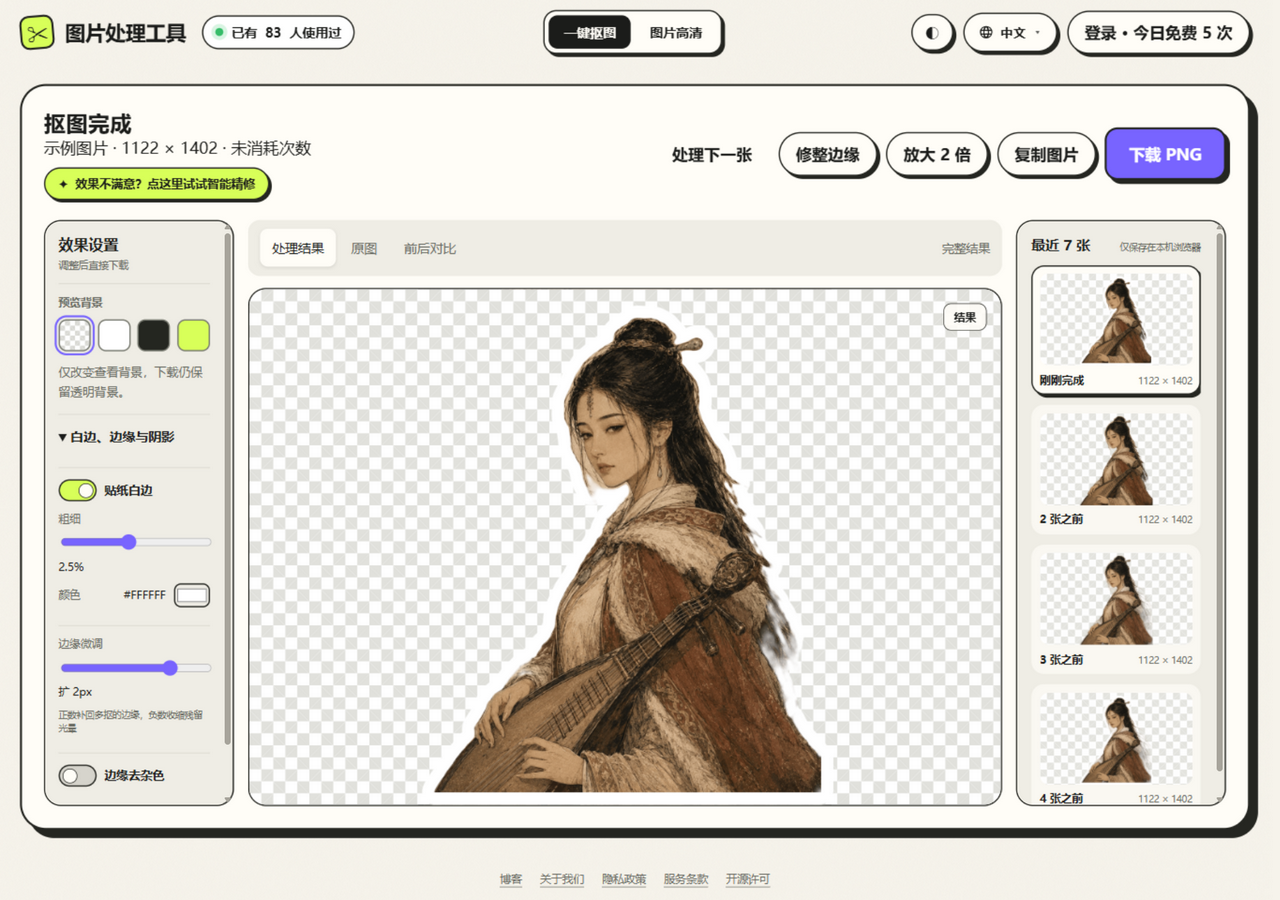
- After removing the background, click the “Upscale 2x” button
- Wait for the AI to process (usually 10–60 seconds, depending on image size and your device)
- Download the upscaled PNG
Note: upscaling runs on your device and doesn't count against your background-removal quota. The first use downloads the 2.4MB model (your browser caches it automatically afterwards).
Performance Notes
- WebGPU: supported in Chrome 113+, delivering a 5–10x speedup
- Tiled processing: large images are automatically split into tiles to avoid running out of memory
- Alpha preservation: when a transparent PNG cutout is upscaled, the alpha channel is processed along with it