PNG vs JPG Transparency Guide: Why Did Your Transparent Background Turn White?
Why Transparent Backgrounds Turn White
This is one of the most common problems of all. You worked hard on a cutout with a transparent background, open the image — and the background is white. The cause is almost always the same: you saved the file as a JPG.
The JPG (JPEG) format was created in 1992 to compress photographs, and it has no support for an alpha channel. When transparent pixels are written into a JPG, the transparency is lost and the software fills those pixels with white.
Do It Right: Use PNG
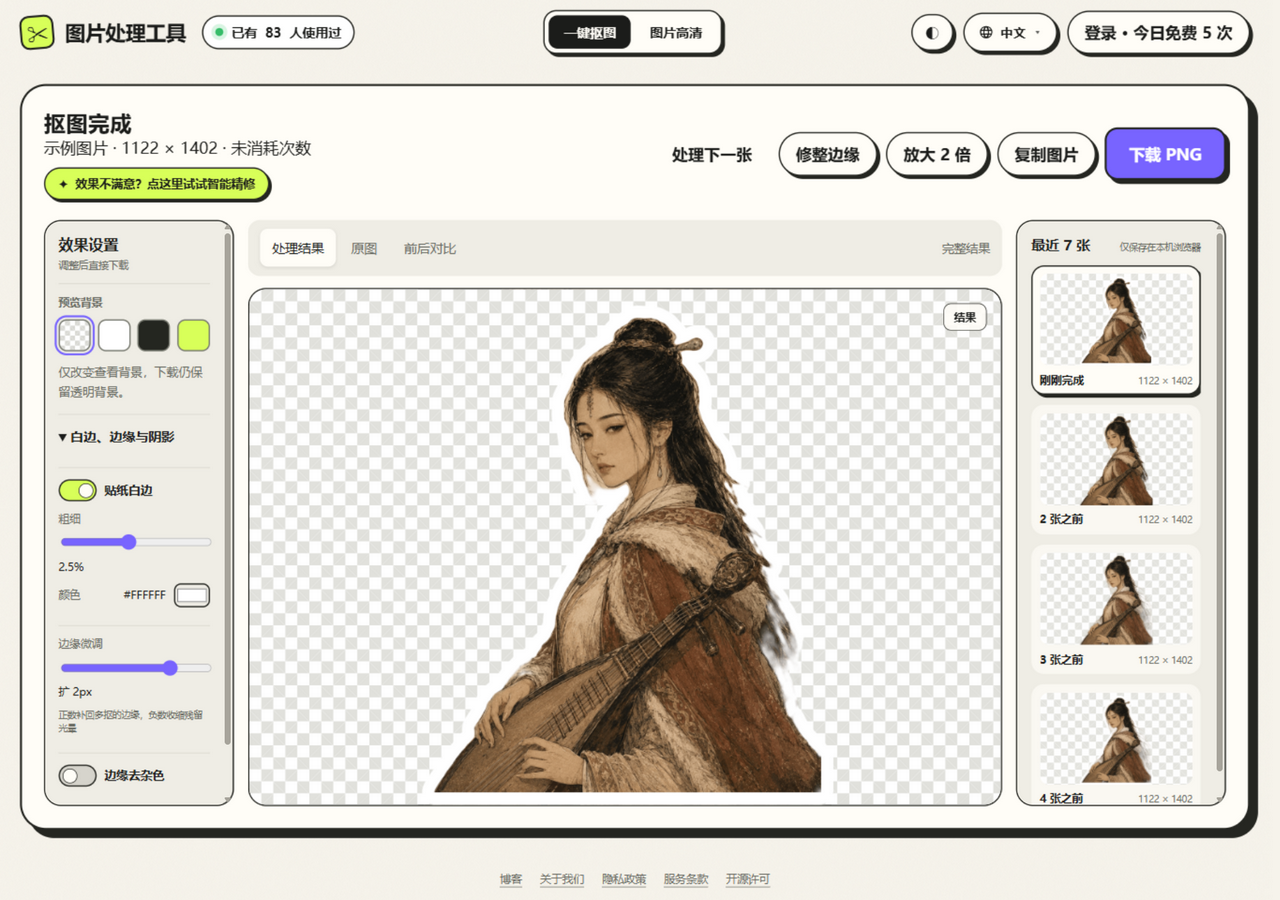
PNG is a format designed for the web in 1996, with support for an 8-bit alpha channel. It comes in three common variants:
| Type | Colors | Transparency | Best for |
|---|---|---|---|
| PNG-8 | 256 indexed colors | Binary (fully transparent or fully opaque) | Icons, simple graphics |
| PNG-24 | 16.7 million colors | Not supported | High-quality photos |
| PNG-32 | 16.7 million colors | 8-bit alpha (256 levels of semi-transparency) | Cutouts, transparent backgrounds |
Cutouts should be exported as PNG-32 (usually just called PNG). Its 256 levels of semi-transparency preserve the soft gradient at hair edges perfectly.
How to Save Correctly in Each Tool
Photoshop
File → Export → Export As → pick PNG (with "Transparency" checked)
Online tools (this site)
JuanJuan Tools exports PNG-32 by default, so transparency is preserved automatically — no extra settings needed.
Windows Paint
Paint does not support transparent backgrounds. If you need to work with a transparent PNG, it is easier to do the cutout and the finishing effects (sticker border, shadow) entirely in the browser.
Check Whether an Image Is Actually Transparent
Open the image and look at the background: a gray-and-white checkerboard (like a chess board) means it is transparent. Solid white or solid black means the transparency is gone.
Common Pitfalls
- Sending a transparent PNG over WeChat or QQ: some clients compress it into a JPG and the transparency is lost. Use the file-transfer option or a cloud drive instead — the same applies to some other messaging apps.
- Inserting into Word or PowerPoint: Office apps handle transparent PNGs well, but the "Set Transparent Color" feature destroys semi-transparent edges.
- Saving with a screenshot tool: system screenshot tools usually save as JPG or PNG-24, which drops the transparency.