Transparent Backgrounds in Canva: The Complete Cutout-to-Design Workflow
The Limits of Canva's Background Remover
Canva's background removal feature requires a Pro subscription (a 30-day free trial, then about ¥70 — roughly US$10 — per month). If you only occasionally need transparent assets for Canva designs, you can absolutely cut out the image with a free tool first and import it into Canva — identical results, zero cost.
Recommended Workflow: Free Cutout + Design in Canva
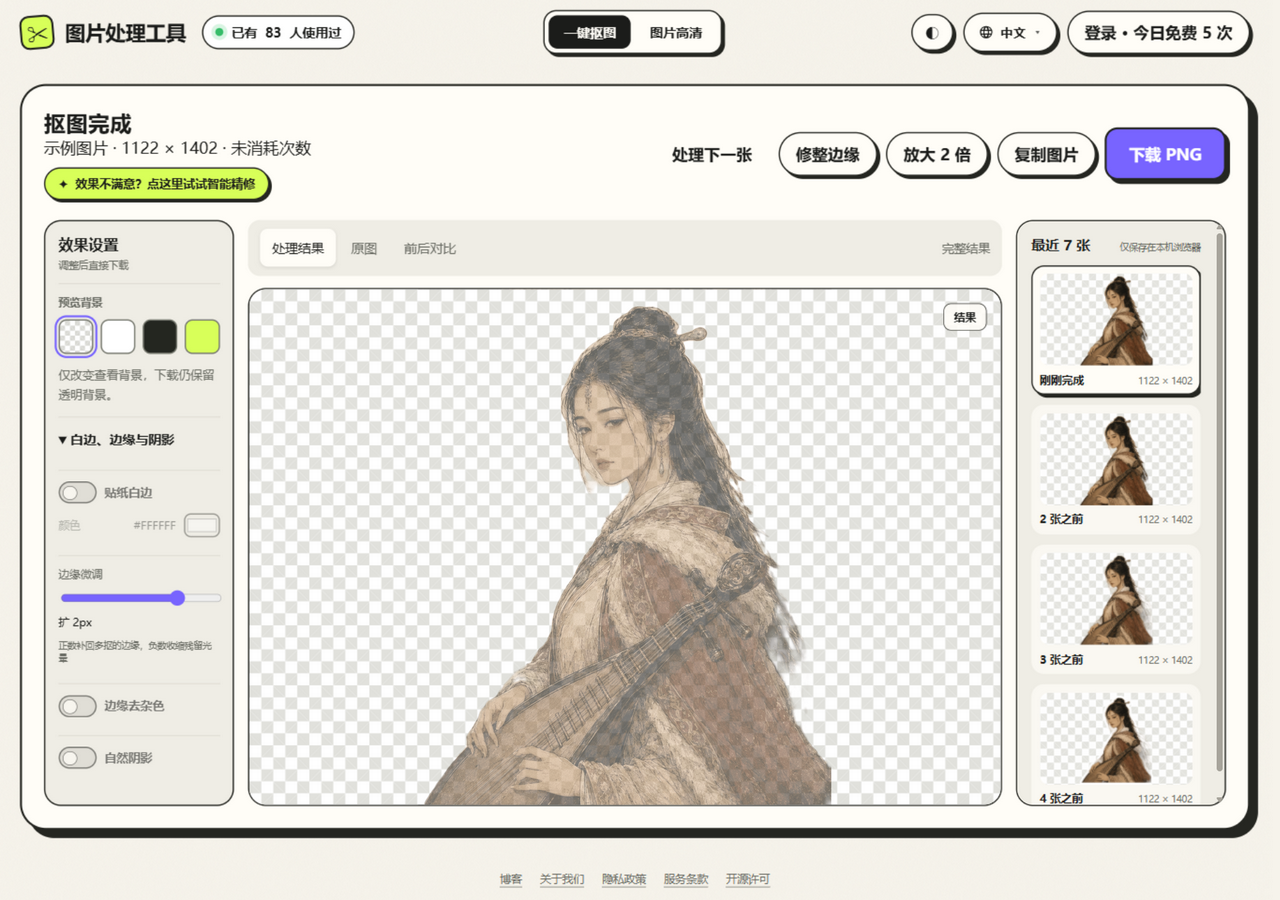
- Open JuanJuan Tools and upload the image you want to cut out
- Wait 3–5 seconds for the automatic cutout, then check whether the edges look good
- If needed, use Smart Refine to fix the edges or Edge Cleanup to remove residual color
- Click "Download PNG" to save the transparent-background image
- Open Canva and upload the transparent PNG as an asset
Tips for Using Transparent PNGs in Canva
Layer onto a solid or gradient background
- Create a design in Canva (choose your target size, e.g. a Xiaohongshu cover at 1242×1660 px)
- Set a background color or gradient
- Drag the transparent PNG onto the canvas
- Adjust position and size
Add a shadow to the transparent asset
- Select the transparent PNG asset
- Click "Effects" → "Shadow" in the top bar
- Adjust the shadow's color, blur, direction, and distance
Tip: If you'd rather add the shadow outside Canva, this site's Natural Shadow effect generates it during the cutout, saving you the tweaking later.
Collage with multiple layers
The biggest advantage of transparent PNGs is free stacking. You can drop multiple people or product cutouts onto the same background to build a collage — in Canva, it's just drag and drop to reorder layers.
More Ways to Use Transparent Assets in Canva
- Logo watermark: place a transparent logo PNG in the corner of your design
- Human silhouettes: use cut-out people as decorative elements
- Product shots: place cut-out products onto lifestyle backgrounds
JuanJuan Tools vs Canva Pro Background Removal
| JuanJuan Tools (free) | Canva Pro | |
|---|---|---|
| Price | Free | ¥70 (~US$10)/month |
| Edge quality | Excellent (cloud-precision cutouts) | Good |
| Hair handling | Excellent | Average |
| Batch processing | Up to 3 images | One at a time |
| Extra effects | Sticker Border / Natural Shadow / Edge Cleanup / AI Upscale (2x) | Must edit inside Canva |
FAQ
Q: Does Canva Free support transparent PNGs?
Yes. Uploading a transparent PNG to the free version of Canva works perfectly and transparency is preserved. Only Canva's built-in background removal feature requires Pro.
Q: My cutout PNG is too large and uploads to Canva slowly?
Compress it first with a tool like TinyPNG (typically 50–70% smaller), then upload.