Sticker Border Tutorial: Make Stickers and Social Media Assets in One Click
What Is a Sticker Border?
A sticker border (also called an outline) adds a solid-color stroke around the silhouette of your cutout. It takes the subject from "floating over the background" to "stuck onto it like a real sticker," and the sense of depth improves dramatically.
Typical uses:
- WeChat and WhatsApp sticker packs
- Xiaohongshu (RED) and Instagram sticker assets
- Highlighting key elements in slide decks
- Labels and corner badges in e-commerce marketing images
How to Make a Sticker Border on This Site
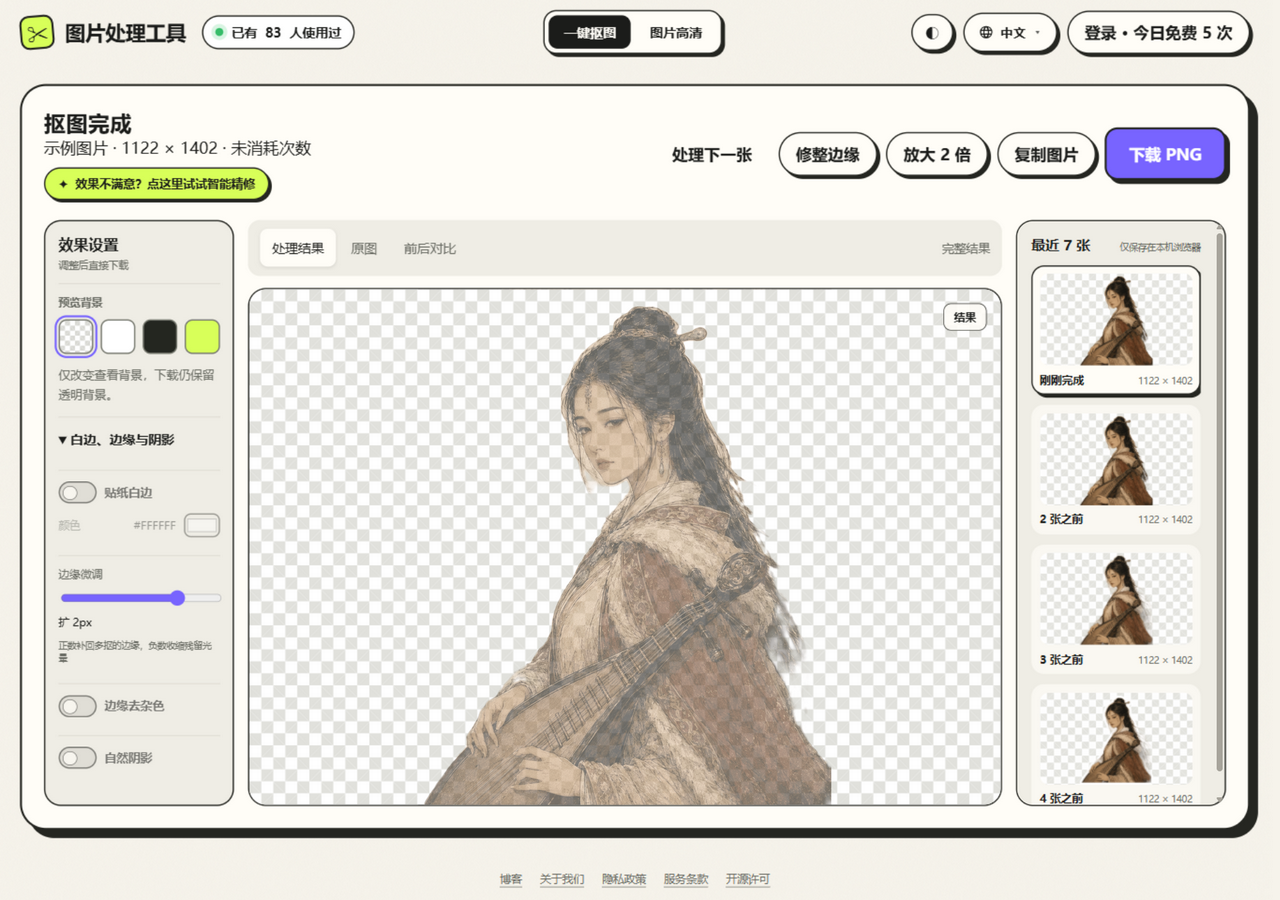
- Open one-click background removal and upload a photo
- Wait for the automatic cutout
- In the effects panel on the right, switch on Sticker Border
- Adjust the settings:
- Thickness: 0.5%–5% (default 2.5%; 2–3% looks best in most cases)
- Color: white by default, but black, a brand color, or any other color works
- Click "Download PNG"
Choosing the Right Border Thickness
| Thickness | Look | Best for |
|---|---|---|
| 1–1.5% | Thin, refined | Professional design, slide decks |
| 2–3% | Classic sticker feel | Stickers, social media assets |
| 4–5% | Thick, cartoonish | Kids' content, playful assets |
Combine It with Other Effects
Sticker Border stacks nicely with the following effects:
- Natural Shadow: border plus a soft offset shadow below equals a 3D sticker look (recommended: intensity 25–35%, softness 2–3%, distance 1–2%)
- Edge Cleanup: clean residual edge color first, then add the border for a crisper result
- AI Upscale (2x): upscale low-resolution assets before adding the border for a sharper export
The Complete WeChat Sticker Workflow
- Prepare a photo of a person or an animal (front-facing with a simple background works best)
- Upload it and let the cutout run
- Enable Sticker Border (3% thickness, white)
- Download the PNG (transparent background)
- In WeChat, send the image in any chat → press and hold it → Add to Stickers
WhatsApp users can do the same: export the transparent PNG, then add it to favorites from the sticker menu.
FAQ
Q: The white border is hard to see on the checkered background.
A white border does blend into the gray-white checkerboard. Use the background switch above the preview area and switch to the dark background — the border becomes clearly visible.
Q: How thin can the border go?
The current minimum is 0.5% (roughly 5–10 pixels), which suits very delicate outlines.
Q: Why do I have to tweak the settings again for every image?
You do not — effect parameters are remembered. The thickness, color, and shadow settings from your last image carry over to the next one automatically.